Browser Extension
Manage user seats and set up the browser extension for real-time reviews.
User Access & Extension
The final step is distributing your license seats and ensuring developers have the browser extension installed to interact with Peer.
Seat Allocation
To assign license slots to specific developers:
- Navigate to the Manage Subscription page in the Dashboard.
- Select the users you wish to assign seats to by checking the boxes next to their names.
- Click Apply Changes.
Extension Installation
Developers should follow the Browser Extension Installation Guide to install the Peer extension.
Onboarding on your Git Platform
Once installed, a banner will appear at the top of GitLab/GitHub:
- "Sign in": Ensure an admin has assigned you a seat in Step 1.
- "Get started": Click to approve OAuth permissions for the extension.
Browser Extension Installation Guide
To use the Deeployed Peer browser extension, first Extract the provided .zip file into a folder. You should see a folder named chrome-mv3 containing the extension files.
Follow the steps below depending on your browser:
Chrome
- Go to the extension management menu by typing
chrome://extensionsin the URL bar. - Enable Developer Mode in the top right corner.
- Click the Load Unpacked button in the top left.
- From the file explorer, select the
chrome-mv3folder you extracted earlier.
Edge
- Go to the extension management menu by typing
edge://extensionsin the URL bar. - Enable Developer Mode in the left panel.
- Click the Load Unpacked button on the right side.
- From the file explorer, select the
chrome-mv3folder you extracted earlier.
Congratulations! The Deeployed Peer browser extension has been added to your browser. You can start using it by visiting your GitLab or GitHub instance.
Authentication / Authorization
When the Deeployed Peer extension is active, you may see one of the following warning banners at the top of the page when you first visit GitLab (or GitHub). You cannot use the extension while these warnings are present.
1. No Seat Assigned
You don't have a seat at this group. Contact your organization's administrator to get one.

If you see this warning, it means you do not have a valid license "seat" in your organization to use Deeployed Peer. Please contact your organization's administrator to request a seat assignment.
2. Authentication Required
Click here to authenticate Deeployed Peer extension.
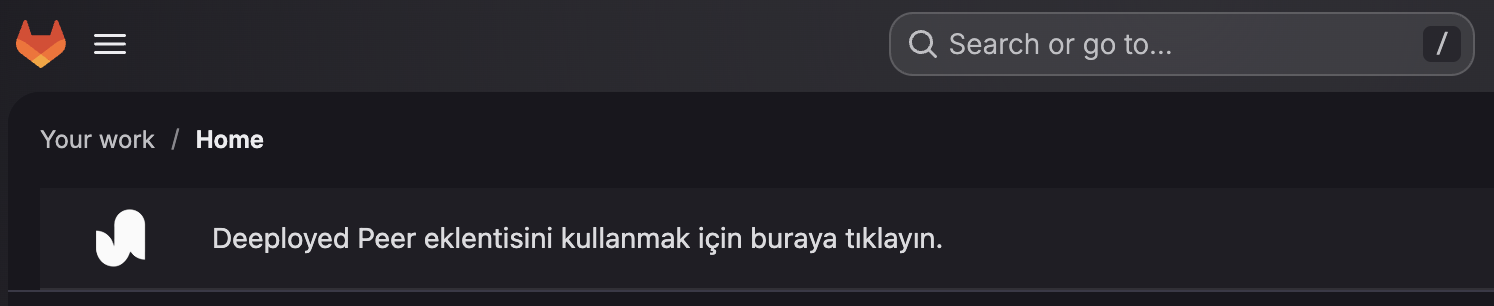
This warning indicates that you have a seat assigned, but the browser extension has not been authenticated with your account yet. Click this banner to perform the one-tap authentication and start using the extension.
3. Repository Not Enabled
This repository is not enabled for Deeployed Peer. Please contact your organization's administrator.

This warning only appears when you are on a specific project (repository / merge request) page. It indicates that the project has not yet been enabled for assistance via the Deeployed Dashboard. Ask your organization's administrator to enable the project in the Dashboard.